I’ll never forget the moment I realized my home office had become a paper prison. Stacks of receipts, contracts, medical records, and random documents were everywhere—on my desk, in drawers, stuffed into folders with optimistic labels like “To File Later.” When tax season rolled around in 2024, I spent three frustrating days hunting for a single W-2 form. That’s when I knew something had to change.
Like many people making the digital transformation leap, I started researching document management solutions. Two names kept appearing in my searches: Nextcloud and Paperless-ngx. Both promised to tame my document chaos, but they approached the problem from completely different angles. The Nextcloud vs Paperless-ngx debate became my obsession for weeks as I tried to figure out which tool would actually solve my problem—not just create a different kind of mess.
After extensive testing, implementing both systems, and even running them side-by-side for months, I’ve gained insights that go way beyond the surface-level comparisons you’ll find in most reviews. This isn’t just about features and specs—it’s about understanding what you actually need and which tool delivers it.
Key Takeaways
- 🌐 Nextcloud is a comprehensive cloud platform that handles files, calendars, contacts, and collaboration—document management is just one feature among many
- 📄 Paperless-ngx specializes exclusively in document management with advanced OCR, tagging, and searchability designed specifically for paperless workflows
- 💰 Both solutions are free and open-source, but require different technical skills and infrastructure investments to deploy effectively
- 🎯 Choose Nextcloud if you need an all-in-one cloud replacement for Google Workspace or Microsoft 365 with document storage as part of a larger ecosystem
- 🔍 Choose Paperless-ngx if your primary goal is digitizing and organizing paper documents with powerful search and automated workflows
Understanding the Core Difference Between Nextcloud and Paperless-ngx

Before we dive deep into features and comparisons, let’s establish something fundamental: Nextcloud and Paperless-ngx aren’t really direct competitors. They’re solving related but distinct problems.
Think of it this way: Nextcloud is like buying a Swiss Army knife—it has a blade, scissors, screwdriver, and a dozen other tools all folded into one device. Paperless-ngx is like buying a professional chef’s knife—it does exactly one thing, but it does that thing exceptionally well.
What Nextcloud Actually Is
Nextcloud started life as an ownCloud fork back in 2016 and has evolved into a full-featured self-hosted cloud platform[1]. When you install Nextcloud, you’re getting:
- File sync and share (the core functionality)
- Calendar and contacts management
- Office document editing through Collabora or OnlyOffice integration
- Video conferencing via Nextcloud Talk
- Email client integration
- Task and project management
- Photo galleries and media management
- Dozens of apps extending functionality
I remember setting up my first Nextcloud instance on a Raspberry Pi in my closet. The setup took about an hour, and suddenly I had my own private Dropbox alternative. But as I explored the app store, I realized I’d stumbled into something much bigger. Within a week, I’d migrated my calendar from Google, set up shared folders for family photos, and was editing documents collaboratively with colleagues.
What Paperless-ngx Actually Is
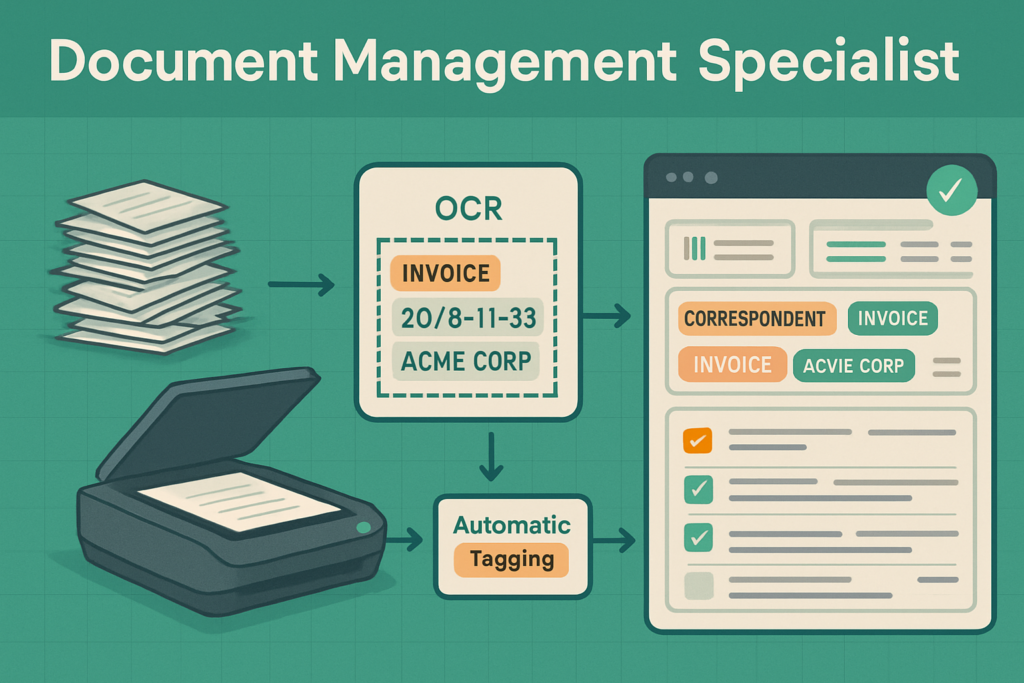
Paperless-ngx is the latest evolution of the original Paperless project, specifically designed to digitize, organize, and manage paper documents[2]. Its entire existence revolves around this workflow:
- Ingest documents (via scanner, email, mobile upload, or file import)
- Process them with OCR (Optical Character Recognition)
- Classify them with tags, correspondents, and document types
- Store them efficiently with full-text search
- Retrieve them instantly when needed
When I set up Paperless-ngx, I connected my network scanner directly to its consumption folder. Every document I scanned was automatically OCR’d, making every word searchable. The system learned patterns from my tagging and started suggesting classifications. Within a month, I’d digitized five years of paper records, and finding any document became a five-second search instead of a five-minute hunt.
Nextcloud vs Paperless-ngx: Feature-by-Feature Comparison
Let’s break down how these tools stack up across the dimensions that actually matter for document management.
Document Storage and Organization
| Feature | Nextcloud | Paperless-ngx |
|---|---|---|
| File Storage | Unlimited (hardware dependent) | Unlimited (hardware dependent) |
| Folder Structure | Traditional hierarchical folders | Flat storage with metadata tags |
| Search Capability | Filename and basic content search | Full-text OCR search across all documents |
| Metadata | Basic file properties | Rich metadata (correspondent, date, type, tags) |
| Automatic Organization | Manual or basic auto-upload | Intelligent auto-tagging and classification |
Here’s where the philosophical difference becomes crystal clear. Nextcloud treats documents like files in a traditional file system. You create folders, maybe something like “Taxes/2025/Receipts,” and you drop files into those folders. It’s familiar and comfortable if you’ve been using computers since the Windows 95 era.
Paperless-ngx throws that entire paradigm out the window. Every document lives in a flat storage system, and you find things through tags, dates, correspondents, and full-text search. It’s more like Gmail than Windows Explorer.
I initially resisted this approach. “I need my folders!” I insisted. But after forcing myself to use Paperless-ngx’s system for a month, something clicked. I stopped thinking “Where did I file that insurance document?” and started thinking “What company sent it?” A quick search for “Blue Cross” instantly pulled up every document from that correspondent, regardless of when I received it or what “folder” I might have mentally assigned it to.
Document Processing and OCR
This is where Paperless-ngx absolutely dominates.
Nextcloud can store your scanned PDFs, but it doesn’t process them in any meaningful way. If you scan a document as an image-based PDF (which is what most scanners produce), Nextcloud will store it, but you won’t be able to search the text inside it. You’ll need to remember the filename or the folder where you stored it.
Paperless-ngx, on the other hand, treats OCR as a first-class citizen. Every document that enters the system gets processed through Tesseract OCR[3]. The text is extracted, indexed, and made searchable. The original document is preserved, but you also get a searchable PDF layer.
I tested this with a stack of old medical bills from 2020. These were faded thermal printer receipts that I’d scanned years ago. I dumped them into Paperless-ngx, and within minutes, I could search for specific procedure codes, dates, or dollar amounts. The OCR even handled my terrible handwritten notes in the margins.
Nextcloud’s approach: Store documents → Organize manually → Remember where you put things
Paperless-ngx’s approach: Ingest documents → OCR automatically → Search for anything
Collaboration and Sharing
Here’s where Nextcloud takes the crown 👑.
Nextcloud was built from the ground up as a collaboration platform. You can:
- Share folders or individual files with specific users
- Create public share links with password protection
- Set expiration dates on shares
- Allow or restrict downloading, editing, or resharing
- Collaborate on documents in real-time with integrated office suites
- Comment on files and receive notifications
My family uses Nextcloud for sharing photos, coordinating calendars, and collaborating on documents. My spouse can drop receipts into a shared “Household Expenses” folder, and I see them instantly on my devices.
Paperless-ngx has basic sharing capabilities, but they’re rudimentary. You can create share links for individual documents, but there’s no user management system, no permission granularity, and no real-time collaboration. It’s designed for personal document management, not team collaboration.
If you need to work with others on documents, Nextcloud is the obvious choice. If you’re managing your own personal document archive, Paperless-ngx’s limited sharing won’t be a dealbreaker.
Mobile Experience
Both platforms offer mobile apps, but with different strengths.
Nextcloud’s mobile apps (available for iOS and Android) provide full access to your files, automatic photo upload, calendar sync, and more. They’re essentially mini versions of the web interface. I have Nextcloud set to automatically upload photos from my phone, creating an instant backup of every picture I take.
Paperless-ngx doesn’t have official native apps, but the web interface is mobile-responsive. More importantly, there are excellent third-party apps like “Paperless Mobile” that provide document scanning, uploading, and searching on the go. I keep a shortcut to Paperless-ngx on my phone’s home screen, and scanning receipts while standing at the register has become second nature.
The mobile scanning experience is actually better with Paperless-ngx because the entire system is optimized for document ingestion. With Nextcloud, you’re just uploading files to folders.
Installation and Technical Requirements: Nextcloud vs Paperless-ngx
Let’s talk about the elephant in the room: both of these solutions require technical knowledge to set up and maintain. Neither is a “download and click” experience like Dropbox or Evernote.
Nextcloud Installation
Nextcloud can be installed several ways:
- Manual installation on a Linux server (requires command-line skills)
- Docker containers (easier but still requires Docker knowledge)
- Snap packages (simplest Linux installation)
- Managed hosting from providers like Nextcloud GmbH or third-party hosts
- Pre-configured appliances like Nextcloud Box or NextcloudPi for Raspberry Pi
I’ve installed Nextcloud at least a dozen times across different platforms. My first installation took about four hours and involved wrestling with PHP configurations, database setup, and SSL certificates. My most recent installation using Docker took 15 minutes.
Minimum requirements for Nextcloud:
- Server with at least 512MB RAM (1GB+ recommended)
- PHP 8.0 or higher
- MySQL/MariaDB or PostgreSQL database
- Web server (Apache or Nginx)
- Domain name and SSL certificate for secure access
Paperless-ngx Installation
Paperless-ngx is almost exclusively deployed via Docker, which actually makes it more standardized than Nextcloud. The official documentation provides a docker-compose.yml file that handles all the dependencies.
My Paperless-ngx installation took about 30 minutes, including time to configure the consumption folder and set up my scanner. The Docker approach means you don’t have to worry about Python dependencies, database configuration, or web server setup—it’s all containerized.
Minimum requirements for Paperless-ngx:
- Server with at least 2GB RAM (4GB recommended for OCR)
- Docker and Docker Compose
- Sufficient storage for document archive
- Optional: Network scanner or scanner with folder monitoring
Ongoing Maintenance
Both systems require ongoing maintenance, but in different ways.
Nextcloud needs regular updates (security patches come frequently), database optimization, and occasional troubleshooting of app conflicts. I spend about an hour per month maintaining my Nextcloud instance—checking logs, updating apps, and ensuring everything syncs properly.
Paperless-ngx is lower maintenance in my experience. Updates are straightforward with Docker (pull new image, restart containers), and the system is more focused, so there are fewer moving parts to break. I probably spend 20 minutes per month on Paperless-ngx maintenance.
Real-World Use Cases: When to Choose Each Solution
After running both systems for over a year, I’ve identified clear scenarios where each tool excels.
Choose Nextcloud When…
✅ You want to replace Google Workspace or Microsoft 365 with a self-hosted alternative
✅ You need collaboration features for teams or family members
✅ Document storage is part of a larger digital ecosystem you’re building
✅ You want calendar, contacts, and file sync in one place
✅ You’re comfortable with ongoing maintenance and troubleshooting
Real-world example: My friend Sarah runs a small consulting business with three employees. She installed Nextcloud on a VPS and now has shared calendars for scheduling, client folders with granular permissions, collaborative document editing, and video conferencing—all without paying monthly fees to Google or Microsoft. Her documents are stored alongside everything else, and the integrated search finds files across all her data.
Choose Paperless-ngx When…
✅ Your primary goal is going paperless and digitizing physical documents
✅ You receive lots of paper mail, receipts, or documents that need organizing
✅ Search and retrieval speed is critical for your workflow
✅ You want automated document processing with minimal manual filing
✅ You’re managing personal documents rather than collaborating with teams
Real-world example: My accountant recommended I keep seven years of tax documents. That’s a lot of paper. I scanned everything into Paperless-ngx, tagged by year and category, and shredded the originals (keeping only legally required physical copies). Now when I need a specific receipt from 2019, I search for the vendor name and find it in seconds. The system even reminds me when documents are approaching their retention expiration dates.
Can You Use Both? The Hybrid Approach
Here’s a plot twist: you don’t have to choose. I currently run both systems, and they complement each other beautifully.
My workflow looks like this:
- Paper documents → Scan to Paperless-ngx for OCR and organization
- Digital files (photos, videos, work documents) → Store in Nextcloud for sync and collaboration
- Important processed documents from Paperless-ngx → Export to Nextcloud for backup and sharing
This hybrid approach gives me the specialized document management of Paperless-ngx while maintaining Nextcloud’s broader ecosystem for everything else. The systems don’t integrate directly, but they don’t need to—they serve different purposes.
I have Paperless-ngx set to export processed documents to a specific folder that Nextcloud syncs. This creates a backup of my document archive in my broader cloud storage while keeping the specialized search and organization features of Paperless-ngx.
The hybrid setup requires:
- More server resources (or two separate servers)
- Managing two different systems
- Understanding the boundaries between each tool’s purpose
- Slightly more complex backup strategy
But for power users who want the best of both worlds, it’s absolutely worth it.
Cost Comparison: Nextcloud vs Paperless-ngx
Both Nextcloud and Paperless-ngx are free and open-source software, but “free” doesn’t mean zero cost. Let’s break down the real expenses.
Direct Costs
| Cost Category | Nextcloud | Paperless-ngx |
|---|---|---|
| Software License | Free (AGPL) | Free (GPL) |
| Server/VPS | $5-20/month | $5-20/month |
| Domain Name | $10-15/year | Optional |
| SSL Certificate | Free (Let’s Encrypt) | Free (Let’s Encrypt) |
| Managed Hosting | $5-50/month (optional) | Not available |
Hidden Costs
💰 Time investment: Setting up either system requires 2-10 hours initially, plus ongoing maintenance
💰 Learning curve: Expect to spend time learning the interface and best practices
💰 Hardware: If self-hosting at home, you’ll need a server (Raspberry Pi, old laptop, or dedicated hardware)
💰 Scanner: For Paperless-ngx, a good document scanner ranges from $150-500
I run both systems on a $10/month VPS from Hetzner with 4GB RAM and 80GB storage. I’ve outgrown that storage and recently upgraded to a $15/month plan with 160GB. For most users, a single VPS in the $10-20/month range can comfortably host either system (or both).
The real cost is your time. If you’re not comfortable with Linux, Docker, and basic server administration, you’ll either need to learn (which takes time) or pay someone to set it up for you (which costs money). I’ve helped three friends set up Nextcloud, and each setup took 2-3 hours of my time—that’s worth something.
Security and Privacy Considerations
One of the main reasons people choose self-hosted solutions like Nextcloud and Paperless-ngx is privacy and control. Your documents aren’t sitting on someone else’s servers, subject to their privacy policies and potential data breaches.
Nextcloud Security Features
- End-to-end encryption for files (with encryption app)
- Two-factor authentication (2FA)
- Brute force protection
- File access control and sharing permissions
- Activity logging and monitoring
- Regular security audits and bug bounty program[4]
Nextcloud has a dedicated security team and a good track record of addressing vulnerabilities quickly. The company behind Nextcloud (Nextcloud GmbH) takes security seriously because their business customers demand it.
Paperless-ngx Security Features
- User authentication with password protection
- Permission system for multi-user setups
- Audit trail for document access
- Encryption at rest (via filesystem encryption)
- No external dependencies or cloud services
Paperless-ngx is simpler architecturally, which means fewer potential attack surfaces. However, it doesn’t have the same level of security scrutiny as Nextcloud because it’s a smaller project with fewer contributors.
Security Best Practices for Both
Regardless of which system you choose, follow these practices:
🔒 Always use HTTPS with valid SSL certificates
🔒 Enable two-factor authentication where available
🔒 Keep software updated with security patches
🔒 Use strong, unique passwords (or better yet, a password manager)
🔒 Implement regular backups (encrypted and off-site)
🔒 Restrict network access with firewalls and VPNs if needed
I learned this lesson the hard way when I initially set up Nextcloud without HTTPS. Within a week, my ISP’s router logs showed multiple connection attempts from unknown IP addresses. After implementing proper SSL and enabling 2FA, those attempts continued but couldn’t penetrate the security layers.
Performance and Resource Usage
How much computing power do these systems actually need? I’ve run both on everything from a Raspberry Pi 4 to a dedicated server, so I can speak from experience.
Nextcloud Performance
Nextcloud can be resource-hungry, especially with multiple users and apps installed. The more apps you enable, the more PHP processes run, and the more database queries execute.
My performance observations:
- Raspberry Pi 4 (4GB RAM): Works but feels sluggish with multiple users. Fine for 1-2 users with basic file sync.
- VPS (2GB RAM): Adequate for small family use (3-5 users) with essential apps
- VPS (4GB RAM): Comfortable for 10+ users with full app suite
- Dedicated server (8GB+ RAM): Smooth performance for dozens of users
The web interface can feel slow if you haven’t optimized caching and database settings. I spent a weekend tuning my Nextcloud installation with Redis caching and PHP opcache, and the performance improvement was dramatic—page loads went from 2-3 seconds to under 1 second.
Paperless-ngx Performance
Paperless-ngx is more resource-intensive during OCR processing but lighter during normal operation.
My performance observations:
- OCR processing: CPU-intensive, can take 10-60 seconds per page depending on hardware
- Normal browsing: Very fast and responsive, even on modest hardware
- Search: Near-instant results thanks to PostgreSQL full-text search
- RAM usage: 1-2GB during normal operation, spikes during OCR
I run Paperless-ngx on the same VPS as Nextcloud, and I’ve configured it to process documents during off-peak hours to avoid CPU contention. The system queues incoming documents and processes them sequentially, so scanning 50 pages doesn’t overwhelm the server.
Pro tip: If you’re running Paperless-ngx on limited hardware, enable the “parallel task limit” setting to prevent OCR from consuming all available CPU cores.
Community and Support
When something breaks (and eventually, something always breaks), having a strong community and good documentation makes all the difference.
Nextcloud Community
Nextcloud has a large, active community with:
- Comprehensive official documentation
- Active forums with thousands of members
- Regular blog posts and tutorials
- Commercial support options
- Hundreds of third-party apps and integrations
- Annual Nextcloud Conference
I’ve posted questions on the Nextcloud forums multiple times and usually get helpful responses within hours. The community includes both hobbyists and IT professionals running Nextcloud in enterprise environments.
Paperless-ngx Community
Paperless-ngx has a smaller but passionate community with:
- Excellent official documentation (seriously, it’s really good)
- Active GitHub discussions
- Responsive Discord server
- Regular updates and feature releases
- Growing ecosystem of integrations
The Paperless-ngx community feels more tight-knit. When I encountered an OCR issue with German language documents, I posted on their Discord and got help from a developer within 30 minutes. The smaller size means you’re more likely to interact directly with the people building the software.
Migration and Data Portability
What happens if you decide to switch systems or move to a different solution? Let’s talk about exit strategies.
Getting Data Out of Nextcloud
Nextcloud stores files in a regular filesystem structure, which makes migration relatively straightforward:
- Files are stored in readable folders (not proprietary format)
- Database exports contain metadata and sharing information
- Calendar and contacts use standard formats (CalDAV, CardDAV)
- Easy to bulk download everything via web interface or sync client
I’ve migrated Nextcloud instances three times (between VPS providers and hardware upgrades), and the process is well-documented. You can also selectively sync folders to local storage, giving you constant backups of your data.
Getting Data Out of Paperless-ngx
Paperless-ngx also prioritizes data portability:
- Documents stored as standard PDF files
- Metadata exportable as JSON
- Bulk export function downloads everything with metadata preserved
- No vendor lock-in or proprietary formats
The export function creates a structured archive with all your documents and their metadata, making it possible to migrate to another system or simply keep a complete offline backup.
Both systems respect your data ownership, which is refreshing compared to commercial cloud services that make exporting difficult.
The Verdict: Making Your Choice
After thousands of words and months of real-world testing, here’s my honest assessment of the Nextcloud vs Paperless-ngx decision.
Choose Nextcloud if:
- You want a comprehensive cloud platform
- Collaboration is important
- You’re replacing multiple services (file storage, calendar, contacts)
- You have multiple users or family members
- You value ecosystem and extensibility
Choose Paperless-ngx if:
- Your primary need is document management
- You’re drowning in paper and need to go digital
- Search and retrieval speed matters most
- You want automated document processing
- You’re a solo user managing personal documents
Choose both if:
- You have the technical skills and resources
- You want specialized document management AND broader cloud services
- You’re comfortable managing multiple systems
- You see value in having complementary tools
For me personally, running both has been the right choice. Paperless-ngx handles my document archive with precision and power, while Nextcloud manages everything else in my digital life. They don’t compete—they collaborate.
But if I had to choose just one? It depends entirely on your primary pain point. If you’re drowning in paper documents and need to digitize your life, Paperless-ngx will change your world. If you’re trying to escape Google’s ecosystem and want comprehensive cloud services, Nextcloud is your answer.
Conclusion: Taking the Next Steps
The Nextcloud vs Paperless-ngx comparison ultimately isn’t about which tool is “better”—it’s about which tool solves your specific problem. Both are excellent open-source solutions that respect your privacy and give you control over your data.
Here’s what I recommend you do next:
1. Define your primary need: Are you solving a document management problem or a broader cloud storage problem?
2. Assess your technical comfort level: Can you handle Linux server administration, or do you need managed hosting?
3. Start with a test installation: Both systems can be tested in Docker containers on your local machine before committing to a VPS.
4. Start small and expand: Don’t try to migrate everything at once. Test with a subset of documents or files first.
5. Join the communities: Both projects have helpful communities that can guide you through challenges.
My journey from paper chaos to digital organization took months, not days. I made mistakes, reinstalled systems, and learned a lot about what actually works versus what sounds good in theory. But the investment was worth it. I now have instant access to any document from the last seven years, my files sync across all my devices, and I’m not paying monthly fees to Big Tech companies.
Whether you choose Nextcloud, Paperless-ngx, or both, you’re taking control of your digital life. That’s something worth celebrating. 🎉
The future is self-hosted, private, and under your control. Welcome to the revolution.
References
[1] Nextcloud. (2025). “About Nextcloud.” Nextcloud GmbH. https://nextcloud.com/about/
[2] Paperless-ngx. (2025). “Paperless-ngx Documentation.” GitHub. https://docs.paperless-ngx.com/
[3] Tesseract OCR. (2025). “Tesseract Open Source OCR Engine.” GitHub. https://github.com/tesseract-ocr/tesseract
[4] Nextcloud. (2025). “Security & Compliance.” Nextcloud GmbH. https://nextcloud.com/security/