
I’ll never forget the day my home insurance company asked me to provide a complete inventory of my belongings after a minor flood. I stood there, phone in hand, trying to remember what was in my storage closet, let alone prove I owned half the items I was claiming. That frustrating experience led me down a rabbit hole that eventually introduced me to Homebox and Docker—a combination that would completely transform how I manage my household inventory.
If you’re tired of scattered spreadsheets, lost receipts, and the nagging feeling that you have no idea what you actually own, you’re in the right place. Today, I’m going to walk you through everything you need to know about using Homebox with Docker to create a powerful, self-hosted inventory management system right in your own home. 🏠
Key Takeaways:
- Homebox is a free, open-source home inventory management system that helps you track possessions, warranties, receipts, and maintenance schedules
- Docker simplifies Homebox deployment by packaging the application and its dependencies into portable containers that run consistently across any system
- Self-hosting with Docker gives you complete data privacy and control over your personal inventory information
- The setup process takes less than 30 minutes even for beginners, with docker-compose making it incredibly straightforward
- Homebox offers features like QR code labeling, attachment storage, and multi-user support that rival expensive commercial solutions
What Is Homebox and Why Should You Care?
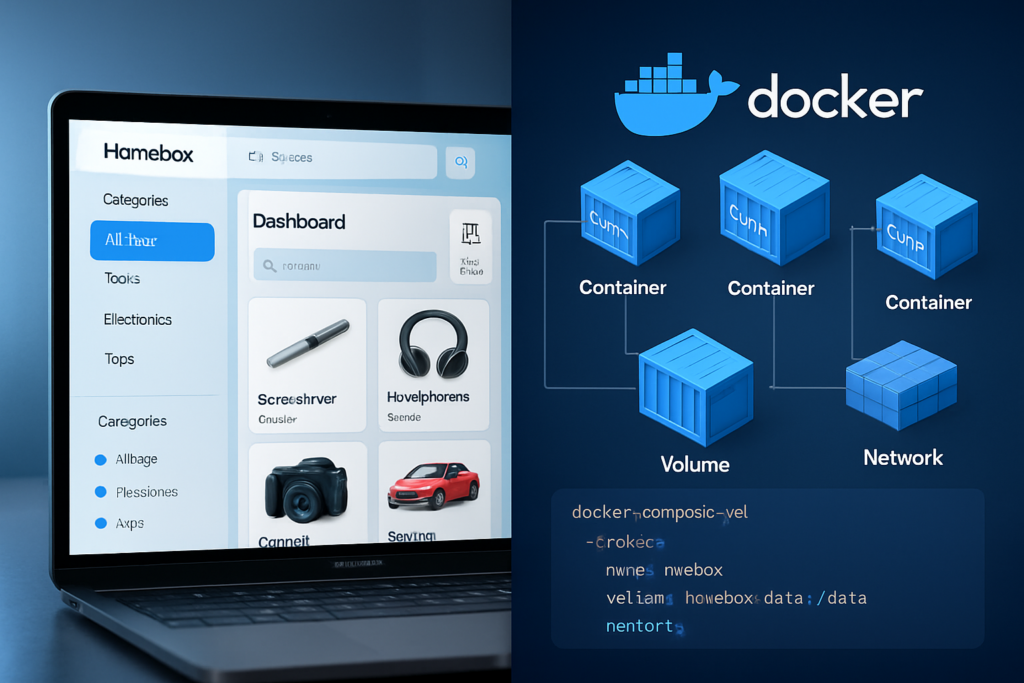
Let me start with the basics. Homebox is an open-source, self-hosted inventory and organization system designed specifically for home use. Think of it as a digital catalog of everything you own—from your kitchen appliances to your power tools, from important documents to warranty information.
But here’s what makes it special: unlike cloud-based alternatives that store your personal information on someone else’s servers, Homebox runs entirely on your own hardware. You maintain complete control over your data, which is increasingly important in 2025 as privacy concerns continue to grow.
The Problem Homebox Solves
I’ve talked to dozens of homeowners who struggle with the same issues:
- 📦 Not knowing what’s in storage boxes in the garage or attic
- 🧾 Lost receipts when warranty claims are needed
- 📅 Forgotten maintenance schedules for appliances and equipment
- 💰 Difficulty providing accurate inventories for insurance purposes
- 🔍 Wasting time searching for items they know they own but can’t locate
Homebox addresses all of these pain points with an elegant, user-friendly interface that makes inventory management actually enjoyable rather than a chore.
Understanding Docker: The Foundation for Homebox Deployment
Before we dive into the specifics of Homebox and Docker integration, let’s talk about why Docker matters. When I first heard about Docker, I was intimidated. Container technology? Orchestration? It sounded like something only DevOps engineers needed to understand.
But here’s the truth: Docker is actually one of the most user-friendly ways to run applications like Homebox.
What Docker Does in Simple Terms
Imagine you want to install a complex application on your computer. Traditionally, you’d need to:
- Install the right version of programming languages
- Set up databases
- Configure network settings
- Manage dependencies
- Troubleshoot conflicts with other software
Docker eliminates all of that headache. It packages the application and everything it needs into a “container”—a standardized unit that runs the same way on any system. Whether you’re using Windows, Mac, Linux, or a Raspberry Pi, the Docker container works identically.
For those interested in project management tools that also benefit from containerization, Docker has revolutionized how we deploy and manage software across different environments.
Why Homebox and Docker Are Perfect Together
The marriage of Homebox and Docker makes perfect sense for several reasons:
| Benefit | Description |
|---|---|
| Easy Installation | One docker-compose command replaces dozens of manual setup steps |
| Consistency | Works the same across all operating systems and hardware |
| Isolation | Homebox runs in its own environment without affecting other applications |
| Easy Updates | Pull a new container image to update—no complex upgrade procedures |
| Portability | Move your entire Homebox setup to new hardware by transferring containers |
| Resource Efficiency | Containers use fewer resources than traditional virtual machines |
Getting Started with Homebox and Docker: Prerequisites
Before we jump into installation, let’s make sure you have everything you need. Don’t worry—the requirements are minimal, and I’ll explain each one.
Hardware Requirements
The beauty of Homebox is that it’s incredibly lightweight. I’ve successfully run it on:
- 🖥️ Old laptops repurposed as home servers
- 🥧 Raspberry Pi 4 with just 2GB of RAM
- 💻 NAS devices like Synology or QNAP
- ☁️ Virtual private servers for remote access
- 🖱️ Desktop computers running in the background
Minimum specifications:
- CPU: Any modern processor (even ARM-based)
- RAM: 512MB minimum (1GB recommended)
- Storage: 5GB for the application plus space for your attachments
- Network: Basic internet connection for initial setup
Software Prerequisites
You’ll need to install Docker on your system. The process varies slightly by operating system, but Docker provides excellent documentation for:
- Linux (Ubuntu, Debian, Fedora, etc.)
- Windows (Windows 10/11 with WSL2)
- macOS (Intel or Apple Silicon)
- Raspberry Pi OS
You’ll also want Docker Compose, which is now included with Docker Desktop on Windows and Mac. Linux users may need to install it separately.
Knowledge Prerequisites
Here’s the honest truth: you don’t need to be a technical wizard. If you can:
- Open a terminal or command prompt
- Copy and paste commands
- Edit a text file
- Follow step-by-step instructions
…then you’re fully qualified to set up Homebox and Docker! 🎉
Step-by-Step: Installing Homebox with Docker
Now for the fun part—let’s actually get Homebox running on your system. I’m going to walk you through the process I use, which takes about 15-30 minutes from start to finish.
Method 1: Docker Compose (Recommended)
Docker Compose is the easiest way to deploy Homebox. It uses a simple configuration file to define everything about how your container should run.
Step 1: Create a directory for Homebox
mkdir -p ~/homebox
cd ~/homebox
Step 2: Create a docker-compose.yml file
Create a new file called docker-compose.yml in your homebox directory with the following content:
version: "3.4"

services:
  homebox:
    image: ghcr.io/hay-kot/homebox:latest
    container_name: homebox
    restart: unless-stopped
    environment:
      - HBOX_LOG_LEVEL=info
      - HBOX_LOG_FORMAT=text
      - HBOX_WEB_MAX_UPLOAD_SIZE=10
    volumes:
      - homebox-data:/data/
    ports:
      - "7745:7745"

volumes:
  homebox-data:
    driver: local
Step 3: Start Homebox
Run this simple command:
docker-compose up -dThe -d flag runs it in “detached” mode, meaning it runs in the background.
Step 4: Access Homebox
Open your web browser and navigate to:
http://localhost:7745If you’re accessing from another device on your network, replace localhost with your server’s IP address.
That’s it! You should see the Homebox welcome screen where you can create your first account. 🎊
Method 2: Docker Run Command
If you prefer a single command approach (though I recommend docker-compose for easier management), you can use:
docker run -d \
  --name homebox \
  --restart unless-stopped \
  -p 7745:7745 \
  -v homebox-data:/data/ \
  -e HBOX_LOG_LEVEL=info \
  ghcr.io/hay-kot/homebox:latest
This achieves the same result but with less flexibility for future configuration changes.
Configuring Your Homebox and Docker Setup
Once Homebox is running, you’ll want to optimize your configuration. This is where the real power of Homebox and Docker shines through—you can customize everything to fit your specific needs.
Essential Configuration Options
Let me share the configuration tweaks I’ve found most useful:
Environment Variables:
These go in your docker-compose.yml file under the environment: section:
HBOX_WEB_MAX_UPLOAD_SIZE: Controls maximum file upload size (in MB)HBOX_LOG_LEVEL: Set todebugfor troubleshooting orerrorfor minimal loggingHBOX_OPTIONS_ALLOW_REGISTRATION: Set tofalseafter creating your accounts to prevent unauthorized access
Volume Mounts:
The default configuration stores everything in a Docker volume, which is fine for most users. However, if you want direct access to your data files, you can change:
volumes:
  - homebox-data:/data/
To:
volumes:
  - ./homebox-data:/data/
This creates a homebox-data folder in your current directory with all your Homebox files.
Setting Up Reverse Proxy (Optional but Recommended)
If you want to access Homebox from outside your home network with a proper domain name and HTTPS encryption, you’ll want to set up a reverse proxy. I use Nginx Proxy Manager with Docker, which makes this process surprisingly simple.
Similar to how businesses manage their all-in-one business suite solutions, proper access management is crucial for home applications too.
Backup Configuration
Here’s something I learned the hard way: always configure backups from day one. With Docker, your Homebox data lives in a volume, so you need to back it up separately.
I use a simple script that runs daily:
#!/bin/bash
docker run --rm \
  -v homebox-data:/data \
  -v ~/backups:/backup \
  alpine tar czf /backup/homebox-backup-$(date +%Y%m%d).tar.gz -C /data .
This creates compressed backup files in your ~/backups directory with timestamps.
Using Homebox: Features and Best Practices
Now that your Homebox and Docker setup is running smoothly, let’s explore what you can actually do with it. This is where the application really shines.
Core Features That Make Homebox Powerful
1. Item Management 📱
Each item in Homebox can include:
- Name, description, and notes
- Purchase date and price
- Warranty information with expiration dates
- Serial numbers and model numbers
- Custom fields for any additional information you need
- Photos and document attachments
- Location within your home
- Quantity tracking
2. Location Organization 🏠
I organize my items hierarchically:
- House → Kitchen → Pantry → Top Shelf
- Garage → Tool Cabinet → Drawer 3
- Storage Unit → Box 12
This nested structure makes finding things incredibly easy.
3. Label and QR Code Generation 🏷️
One of my favorite features! Homebox generates QR codes for each item or location. I print these on labels and stick them on storage boxes. Now, when I need to find something, I just scan the QR code with my phone, and Homebox shows me exactly what’s inside.
4. Maintenance Schedules 🔧
Set reminders for:
- HVAC filter changes
- Appliance servicing
- Vehicle maintenance
- Seasonal tasks
The system sends notifications when maintenance is due, which has saved me from several costly repairs.
5. Multi-User Support 👨👩👧👦
Everyone in my household has their own Homebox account. We can all add items, update locations, and attach receipts. It’s become a collaborative family tool rather than just my personal project.
My Personal Workflow
Let me share how I actually use Homebox day-to-day:
When I purchase something significant:
- Take a photo of the item and receipt
- Add it to Homebox via the mobile-friendly web interface
- Attach the receipt photo
- Enter warranty information
- Assign it to a location
- Generate and print a QR code label if it’s going into storage
For seasonal storage:
- Create a location (e.g., “Attic Box 5”)
- Generate a QR code label for the box
- Add each item going into the box
- Stick the QR code on the outside
- Never wonder what’s in that box again!
For insurance purposes:
I export my entire inventory quarterly as a PDF and store it in my secure backup system. If disaster strikes, I have a complete, documented list of my possessions with photos and purchase prices.
Advanced Homebox and Docker Techniques
Once you’re comfortable with the basics, there are some advanced techniques that can take your setup to the next level.
Running Multiple Homebox Instances
Why would you want this? I run two instances:
- Personal: For household items and family possessions
- Business: For equipment, tools, and business assets
Each runs in its own Docker container on different ports:
version: "3.4"

services:
  homebox-personal:
    image: ghcr.io/hay-kot/homebox:latest
    container_name: homebox-personal
    ports:
      - "7745:7745"
    volumes:
      - homebox-personal-data:/data/

  homebox-business:
    image: ghcr.io/hay-kot/homebox:latest
    container_name: homebox-business
    ports:
      - "7746:7745"
    volumes:
      - homebox-business-data:/data/

volumes:
  homebox-personal-data:
  homebox-business-data:
Integration with Home Assistant
For smart home enthusiasts, Homebox can integrate with Home Assistant through webhooks and API calls. I’ve set up automations that:
- Remind me when warranties are expiring
- Alert me to upcoming maintenance tasks
- Log when I add or remove items from specific locations
Custom Themes and Branding
While Homebox doesn’t officially support custom themes yet, you can modify the appearance using browser extensions or by building a custom Docker image with modified CSS files.
Database Backups and Migration
Homebox uses SQLite for its database, which makes backups incredibly simple. The entire database is a single file located in your data volume. For those managing multiple systems like CRM tools, this simplicity is refreshing.
To migrate to new hardware:
- Stop the Homebox container
- Copy the entire data volume
- Start Homebox on the new system with the copied data
- Everything works exactly as before
Troubleshooting Common Homebox and Docker Issues
Even with the simplicity of Homebox and Docker, you might encounter some hiccups. Here are the issues I’ve faced and how I solved them.
Issue 1: Can’t Access Homebox After Installation
Symptoms: Browser shows “connection refused” or “unable to connect”
Solutions:
- Check if the container is running:
docker ps - View container logs:
docker logs homebox - Verify port 7745 isn’t blocked by your firewall
- Try accessing via IP address instead of localhost
- Restart the container:
docker restart homebox
Issue 2: Upload Failures
Symptoms: Error messages when trying to upload photos or documents
Solutions:
- Increase
HBOX_WEB_MAX_UPLOAD_SIZEin your docker-compose.yml - Check available disk space on your host system
- Verify the data volume has write permissions
- Restart the container after configuration changes
Issue 3: Performance Issues
Symptoms: Slow loading times, laggy interface
Solutions:
- Check system resources (RAM and CPU usage)
- Verify you’re not running out of disk space
- Consider moving the database to SSD storage
- Reduce the number of high-resolution images stored
Issue 4: Lost Data After Update
Symptoms: Items, locations, or attachments missing after pulling a new container image
Solutions:
- Always backup before updating
- Verify your volume mounts are correct in docker-compose.yml
- Check that you’re using persistent volumes, not temporary ones
- Restore from your most recent backup
Getting Help
The Homebox community is incredibly helpful. When I’ve had issues, I’ve found support through:
- GitHub Issues on the Homebox repository
- Docker community forums
- Self-hosting subreddits
- Discord servers dedicated to self-hosted applications
For broader technology decision-making, resources like ReviewTube can help you compare different solutions and make informed choices.
Security Considerations for Homebox and Docker
Since you’re storing sensitive information about your possessions—including serial numbers, purchase prices, and photos of your home—security should be a top priority.
Essential Security Measures
1. Network Security 🔒
Don’t expose Homebox directly to the internet without proper security:
- Use a VPN to access your home network remotely
- Implement a reverse proxy with HTTPS
- Enable authentication on your reverse proxy
- Use strong, unique passwords for all Homebox accounts
2. Docker Security Best Practices
- Run containers as non-root users when possible
- Keep Docker and Homebox images updated
- Use Docker secrets for sensitive configuration
- Limit container capabilities
- Implement network segmentation
3. Data Encryption
While Homebox doesn’t currently offer built-in encryption, you can:
- Encrypt the volume at the filesystem level
- Use encrypted backup solutions
- Store particularly sensitive documents in encrypted archives before uploading
4. Access Control
- Disable registration after creating necessary accounts
- Use strong, unique passwords (I recommend a password manager)
- Regularly review user accounts and remove unused ones
- Enable two-factor authentication if you implement a reverse proxy that supports it
My Security Setup
I’ll share my personal configuration for context:
- Homebox runs on a dedicated server in my home office
- Access from outside my home requires VPN connection
- All data volumes are encrypted using LUKS
- Automated backups run daily to an encrypted external drive
- Weekly backups sync to encrypted cloud storage
- Only family members have accounts, and registration is disabled
This might seem like overkwork, but considering the sensitive nature of home inventory data, I sleep better knowing it’s secure.
Comparing Homebox to Commercial Alternatives

Before committing to Homebox and Docker, you might wonder how it stacks up against paid alternatives. I’ve tried several commercial solutions, so let me share my honest comparison.
Homebox vs. Sortly
Sortly is a popular commercial inventory app with mobile apps.
| Feature | Homebox | Sortly |
|---|---|---|
| Cost | Free | $29-99/month |
| Data Privacy | Self-hosted | Cloud-based |
| Customization | Highly flexible | Limited |
| Mobile App | Web-based (mobile-friendly) | Native apps |
| Offline Access | Limited | Yes |
| Storage Limits | Your hardware | Plan-dependent |
Winner: Homebox for privacy and cost; Sortly for mobile experience
Homebox vs. MyStuff2
MyStuff2 is another home inventory solution.
Homebox advantages:
- ✅ Free and open-source
- ✅ No subscription fees
- ✅ Complete data control
- ✅ Active development community
- ✅ Docker deployment simplicity
MyStuff2 advantages:
- ✅ Polished native mobile apps
- ✅ Offline-first design
- ✅ More mature feature set
- ✅ Professional support
Why I Chose Homebox
After testing multiple solutions, I chose Homebox because:
- Privacy: My inventory data stays on my hardware
- Cost: Zero ongoing fees (just electricity for my server)
- Control: I can modify, backup, and migrate as needed
- Learning: The Docker setup taught me valuable skills
- Community: Active development with regular updates
For businesses evaluating similar decisions across different software categories, checking out business tool comparisons can provide valuable insights into the decision-making process.
Future of Homebox and Docker: What’s Coming in 2025
The Homebox project is actively developed, and 2025 looks promising for new features and improvements.
Planned Features
Based on the GitHub roadmap and community discussions:
- 📱 Native mobile apps for iOS and Android
- 🔗 API improvements for better integration capabilities
- 📊 Enhanced reporting with charts and analytics
- 🏷️ Barcode scanning in addition to QR codes
- 🌐 Multi-language support expansion
- 🔄 Import/export improvements for easier migration
- 🎨 Customizable themes and UI options
The Growing Self-Hosting Movement
Homebox is part of a larger trend toward self-hosting in 2025. People are increasingly concerned about:
- Data privacy and corporate surveillance
- Subscription fatigue and recurring costs
- Platform dependency and vendor lock-in
- Data ownership and portability
Tools like Homebox, combined with Docker’s simplicity, are making self-hosting accessible to non-technical users. I’ve helped several friends set up their own Homebox instances, and none of them had prior Docker experience.
Docker’s Evolution
Docker itself continues to improve:
- Better ARM support for Raspberry Pi and similar devices
- Enhanced security features
- Improved resource efficiency
- Simplified networking options
- Better Windows integration
These improvements make Homebox and Docker an even more compelling combination as we move through 2025.
Real-World Use Cases and Success Stories
Let me share some inspiring ways people are using Homebox and Docker that go beyond basic inventory management.
Case Study 1: The Rental Property Manager
My friend Sarah manages five rental properties. She uses Homebox to:
- Track appliances and equipment in each property
- Monitor warranty expiration dates
- Schedule preventive maintenance
- Document property condition with photos
- Maintain records for tax purposes
She runs five separate Homebox instances (one per property) on a single Raspberry Pi 4, each accessible via different subdomains. The total cost? About $75 for hardware that runs 24/7 for pennies per month.
Case Study 2: The Small Business Owner
A local contractor I know uses Homebox for:
- Tool inventory across multiple job sites
- Equipment maintenance scheduling
- Proof of ownership for insurance
- Tracking tool lending to employees
- Managing consumable supplies
He estimates Homebox saves him about 5 hours per week in inventory management and has prevented thousands in lost or stolen tools through better tracking.
Case Study 3: The Collector
A collector of vintage electronics uses Homebox to:
- Catalog his entire collection with detailed specs
- Track purchase prices and current values
- Store restoration notes and documentation
- Organize items by era, manufacturer, and condition
- Share his collection with other enthusiasts (via controlled access)
His Homebox instance contains over 2,000 items with detailed photos and documentation, creating a valuable archive of computing history.
My Personal Success Story
Since implementing Homebox 18 months ago, I’ve:
- ✅ Successfully claimed $3,200 in warranty replacements (I had the receipts and proof!)
- ✅ Reduced time searching for stored items by an estimated 80%
- ✅ Completed insurance inventory requirements in under 10 minutes
- ✅ Never missed an important maintenance deadline
- ✅ Helped four friends set up their own instances
The peace of mind alone is worth the minimal setup effort.
Homebox and Docker: Integration Possibilities
One of the most exciting aspects of self-hosting with Docker is the ability to integrate multiple applications. Homebox plays well with other self-hosted tools to create a comprehensive home management system.
Integration with Document Management
I run Paperless-NGX alongside Homebox for document management. When I add an item to Homebox, I also upload the receipt to Paperless-NGX and link them together. This creates a powerful system where:
- Homebox tracks physical items
- Paperless-NGX manages digital documents
- Both are searchable and cross-referenced
For those interested in document management solutions, comparing Nextcloud vs Paperless-NGX can help you choose the right tool for your needs.
Home Assistant Integration
Home Assistant can pull data from Homebox via API to:
- Display upcoming maintenance tasks on dashboards
- Send notifications when warranties are expiring
- Create automations based on inventory events
- Track household asset values over time
Backup Integration
I use Duplicati (also running in Docker) to automatically backup my Homebox data to multiple locations:
- Local NAS device
- External USB drive
- Encrypted cloud storage
All three backups run automatically without any manual intervention.
Monitoring and Alerts
Uptime Kuma monitors my Homebox instance and alerts me if it goes offline. This is particularly useful if you’re running Homebox on hardware that might occasionally have issues.
Cost Analysis: Homebox and Docker vs. Commercial Solutions
Let’s talk money. While Homebox is free, there are some costs involved in self-hosting. Here’s my honest breakdown.
Initial Setup Costs
Option 1: Raspberry Pi Setup
- Raspberry Pi 4 (4GB): $55
- MicroSD card (64GB): $12
- Power supply: $8
- Case: $10
- Total: $85
Option 2: Repurpose Old Hardware
- Old laptop or desktop: $0 (you already own it)
- Total: $0
Option 3: Cloud VPS
- Basic VPS (2GB RAM): $5-10/month
- Total: $60-120/year
Ongoing Costs
Self-hosted (Raspberry Pi):
- Electricity: ~$2-3/month
- Annual cost: $24-36
Self-hosted (existing hardware):
- Marginal electricity increase: ~$1-2/month
- Annual cost: $12-24
Cloud VPS:
- Hosting: $5-10/month
- Annual cost: $60-120
Commercial Alternative Costs
Sortly Pro:
- $29/month per user
- Annual cost: $348
MyStuff2 Premium:
- $49.99 one-time purchase
- Annual cost: $50 (first year), $0 (subsequent years)
Five-Year Total Cost Comparison
| Solution | 5-Year Total |
|---|---|
| Homebox (Raspberry Pi) | $205 |
| Homebox (existing hardware) | $60-120 |
| Homebox (VPS) | $300-600 |
| Sortly Pro | $1,740 |
| MyStuff2 | $50 |
The savings with Homebox and Docker are substantial over time, especially if you’re using existing hardware or a Raspberry Pi.
Getting Support and Contributing to Homebox
One concern people have about open-source software is support. Who do you call when something breaks? Let me address this.
Official Support Channels
- GitHub Issues: Report bugs and request features
- Documentation: Comprehensive guides and API docs
- Discord Community: Real-time chat with other users
- GitHub Discussions: Q&A and general discussion
Community Resources
The self-hosting community is incredibly supportive. I’ve found help through:
- r/selfhosted subreddit
- Docker community forums
- Home Assistant forums (for integration questions)
- Personal blogs and YouTube tutorials
Contributing Back
Even if you’re not a developer, you can contribute:
- Documentation: Share your setup process
- Bug reports: Help identify and describe issues
- Feature requests: Suggest improvements
- Translations: Help make Homebox available in more languages
- Financial support: Sponsor the project on GitHub
I’ve contributed several documentation improvements and bug reports, which feels great—I’m helping make the tool better for everyone.
Conclusion: Is Homebox and Docker Right for You?
After walking you through everything from basic setup to advanced integrations, let’s bring it all together. Homebox and Docker represent a powerful combination for anyone who wants to take control of their home inventory without surrendering their data privacy or paying ongoing subscription fees.
When Homebox and Docker Is Perfect For You
You should absolutely consider this setup if you:
- 🏠 Want complete control over your personal data
- 💰 Prefer one-time costs over recurring subscriptions
- 🔧 Enjoy learning new technical skills (even at a basic level)
- 📱 Are comfortable with web-based interfaces
- 🔒 Value privacy and data ownership
- 🌱 Support open-source software
- 🖥️ Have spare hardware or are willing to invest in a Raspberry Pi
When Commercial Solutions Might Be Better
Consider paid alternatives if you:
- Need native mobile apps with offline functionality
- Require immediate professional support
- Don’t want to manage any technical infrastructure
- Need specific features Homebox doesn’t yet offer
- Prefer polished, commercial-grade user experiences
- Can’t dedicate time to initial setup and learning
My Final Recommendation
Having used Homebox and Docker for over a year and a half, I can confidently say it’s transformed how I manage my household. The initial investment of a few hours to set it up has paid dividends in:
- Time saved searching for items
- Money recovered through warranty claims
- Peace of mind knowing I have comprehensive records
- Skills gained in Docker and self-hosting
- Privacy maintained by keeping data on my own hardware
The learning curve is gentler than you might expect, especially with the step-by-step guidance available. And once it’s running, Homebox requires minimal maintenance—I spend maybe 5 minutes per month on updates and backups.
Your Next Steps
Ready to get started with Homebox and Docker? Here’s your action plan:
- Choose your hardware: Decide whether to use existing equipment, buy a Raspberry Pi, or rent a VPS
- Install Docker: Follow the official Docker installation guide for your operating system
- Deploy Homebox: Use the docker-compose method outlined in this guide
- Create your first items: Start with high-value possessions or frequently misplaced items
- Implement QR codes: Print labels for storage boxes and containers
- Set up backups: Protect your data from day one
- Explore integrations: Connect Homebox with other self-hosted tools as you grow more comfortable
Remember, you don’t have to implement everything at once. I started with just basic item tracking and gradually added features like QR codes, maintenance schedules, and integrations over several months.
Join the Self-Hosting Revolution
Homebox and Docker are more than just tools—they’re part of a growing movement toward digital self-sufficiency. In 2025, as concerns about data privacy, subscription costs, and platform dependency continue to grow, solutions like Homebox offer a refreshing alternative.
Whether you’re managing a household, small business, or personal collection, the combination of Homebox’s thoughtful features and Docker’s deployment simplicity creates a solution that’s both powerful and accessible.
The question isn’t whether you can set up Homebox with Docker—you absolutely can. The question is: are you ready to take control of your home inventory and join thousands of others who’ve discovered the benefits of self-hosting?
I think you are. And I’m excited for you to experience the satisfaction of running your own infrastructure, managing your possessions effectively, and knowing exactly where everything is when you need it.
Welcome to the world of Homebox and Docker. Your future organized self will thank you! 🎉
References
[1] Docker Official Documentation. “Get Started with Docker.” Docker Inc., 2025. https://docs.docker.com/get-started/
[2] Homebox GitHub Repository. “Homebox – The Home Inventory Management System.” GitHub, 2025. https://github.com/hay-kot/homebox
[3] Docker Hub. “Official Docker Images and Container Registry.” Docker Inc., 2025. https://hub.docker.com/